
How to transport any area of your Minecraft (Aquatic) World into a 3D model
In this short tutorial we show you how to export any area of your Minecraft World into a 3D model. This works even with the Aquatic version of Minecraft.
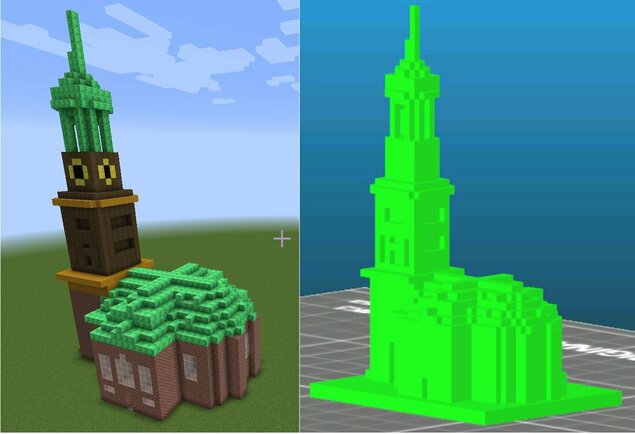
What do you need?
You need
- A Windows/Mac/Unix Computer with the Minecraft world containing your creation(s)
- An internet connection
For the impatient
Jump to craftplicator to start converting your Minecraft creations into STL 3D model files right away.
Or watch the 3 min. how-to-video that describes the process of how to convert Minecraft objects into individual 3D printable STL files.
What is a STL 3D model file, and what can I do with it?
If you ever saw a 3D printed object, played a modern video game, looked at Google Earth, used a GPS, or saw one of the great animated movies from Pixar, Dreamworks, Disney or other studios, you have been in close contact with 3D model files. Vastly simplified a 3D model is a scalable “picture” of an item you can “fly around” and look at from any perspective you wish.
Because of the broad application of 3D models, they come in different shapes and colors.
STL files are widely used for 3D printing and do not contain color information. Since the VAST majority of today’s household 3D printers are single colored, this is not a significant 3D printing limitation.
Because of the broad application of 3D models, they come in different shapes and colors.
STL files are widely used for 3D printing and do not contain color information. Since the VAST majority of today’s household 3D printers are single colored, this is not a significant 3D printing limitation.
Locate your Minecraft World on your machine
Minecraft stores all worlds in a standard folder. By default it “hides” the folders containing world and user settings.
On Windows
|
Default world folder location
|
C:\Users\<user_name>\AppData\Roaming\.minecraft\saves
If you don’t find it, “unhide” it
1. Open your File Explorer 2. Go to C:\Users\<user_name>\ 3. Select View from the Menu 4. Go to Folder Options 5. Select the View Tab 6. Select Show Hidden Files |
On Mac
|
Default world folder location
|
/Users/<user_name>/Library/Application Support/minecraft/saves
If you don’t find it, “unhide” it
1. Open Finder 2. Go To /Users/<user_name> 3. Hit: CMD + SHIFT + . |
On Unix (Desktop)
|
Default world folder location
|
/home/<user_name>/.minecraft/saves
If you don’t find it, “unhide” it
1. Open File Manager 2. Go to /home/<user_name> 3. Hit: CTRL + H |
On Raspberry PI (and Servers)
|
Default world folder location
|
/home/pi/minecraft/world
Accessing the folder over the network Using SAMBA provides an easy way to access the folder on the server. Setting up other Linux systems is very similar and should be completed in 5-10 minutes depending on your Linux skills. Once you can access the SAMBA folder, Craftplicator will use it like any other local drive. SelcHere is the shortened version for setup of the Raspberry Pi: sudo apt-get install samba samba-common-bin sudo nano /etc/samba/smb.conf Add the following lines to smb.conf. Please keep in mind the 0777 settings gives everyone read and write access to your minecraft world folder. If you have security concerns you can change the settings accordingly. [minecraft_world] Comment = Pi shared folder Path = /home/pi/minecraft/world Browseable = yes Writeable = Yes only guest = no create mask = 0777 directory mask = 0777 Public = yes Guest ok = yes force user = pi Restart the service with: sudo /etc/init.d/samba restart |
Exporting your Minecraft Creation into a STL 3D model file
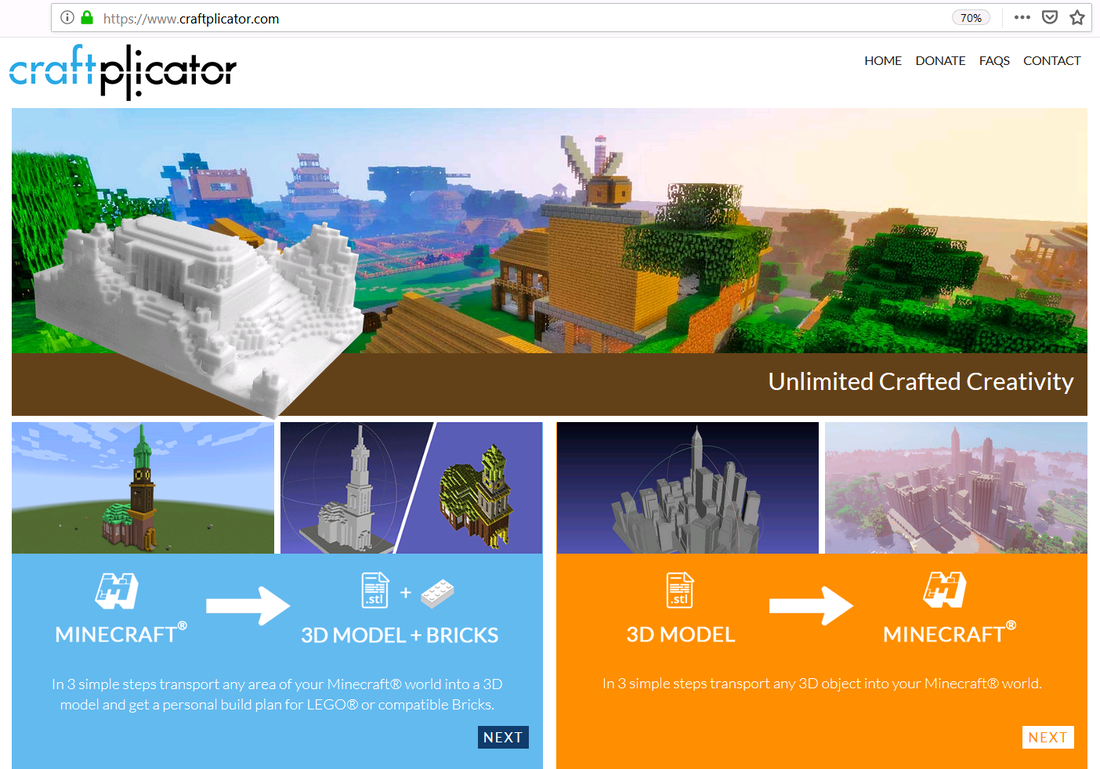
Open your browser and go to www.craftplicator.com .
Select the Next button on the left side of the screen.
Select the Next button on the left side of the screen.
|
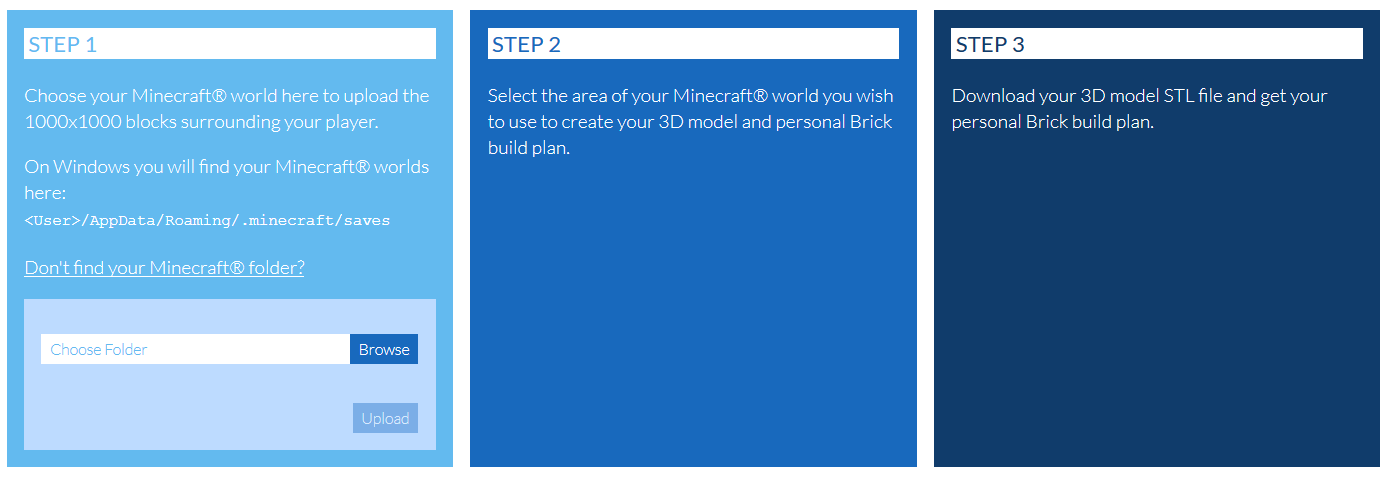
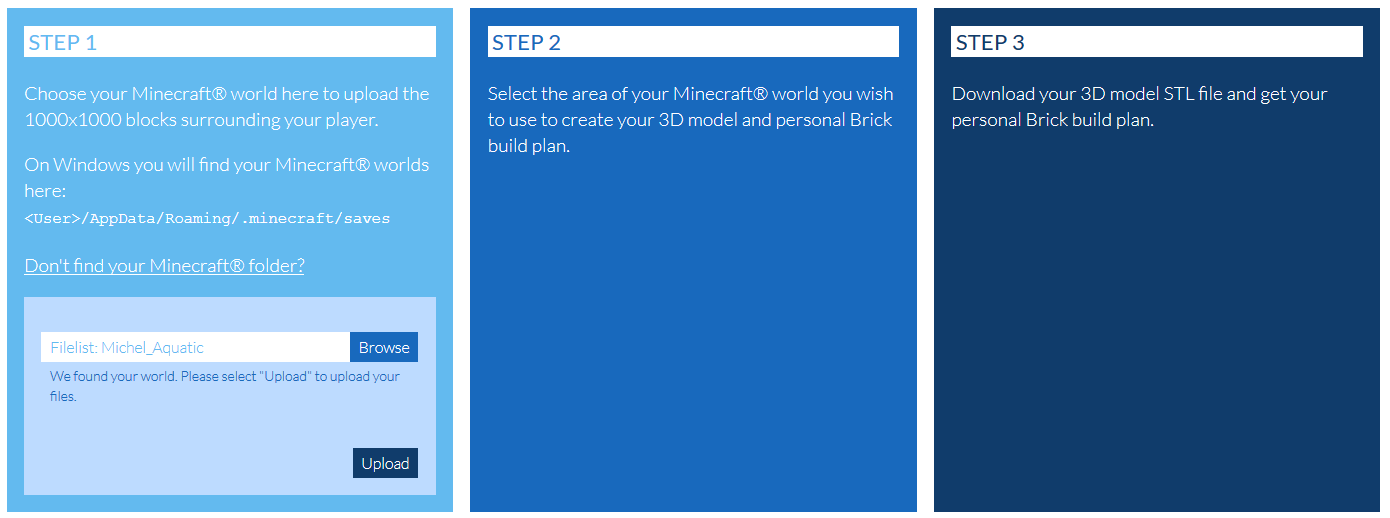
Select your Minecraft world by clicking the Browse button and picking the Minecraft world you have previously located.
|
|
And click the Upload button
|
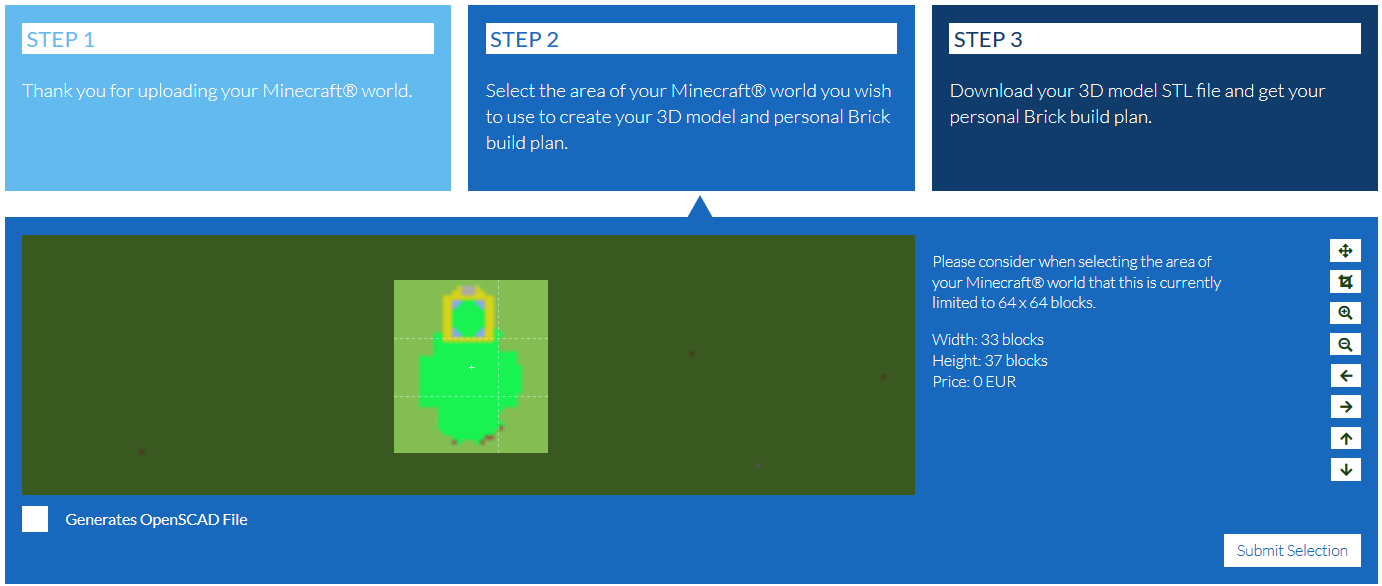
After a few seconds or minutes (depending on the size of your Minecraft world) you can select the Minecraft area you would like to convert into a STL 3D model file.
Please keep in mind that the maximum area of your Minecraft world you can select is limited to 64 x 64 blocks. Then hit the Submit Selection button.
Please keep in mind that the maximum area of your Minecraft world you can select is limited to 64 x 64 blocks. Then hit the Submit Selection button.
Then enter your eMail address to receive an email containing the STL 3D model file.
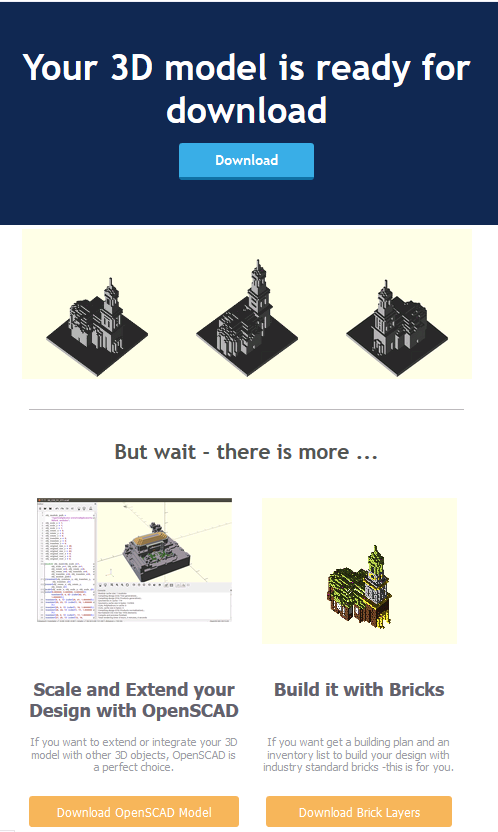
Click the download button on the top of the email to download the STL 3D model file to your computer.
Depending on the selection size the email usually shows up in 3 to 30 minutes.
If you want to 3D print your Minecraft STL 3D model, be aware that printing a large selection too small, might not carry the level of detail that you would like to see. Additionally, all overhangs (features with an overhang beyond 45°) will be 3D printed with support structures. The more overhangs you have, the more support structures your 3D print will have. These light support structures are easily “cleaned” by removing them with a pen or a screwdriver.
P.S.: But wait - there is more:
Further down in the email you can learn what other interesting services www.craftplicator.com has ready for you to try out. Receive an OpenSCAD file of your Minecraft 3D model to extend or integrate with other 3D objects. Or, get a layer-by-layer build plan to rebuild your Minecraft creation with LEGO bricks.
Depending on the selection size the email usually shows up in 3 to 30 minutes.
If you want to 3D print your Minecraft STL 3D model, be aware that printing a large selection too small, might not carry the level of detail that you would like to see. Additionally, all overhangs (features with an overhang beyond 45°) will be 3D printed with support structures. The more overhangs you have, the more support structures your 3D print will have. These light support structures are easily “cleaned” by removing them with a pen or a screwdriver.
P.S.: But wait - there is more:
Further down in the email you can learn what other interesting services www.craftplicator.com has ready for you to try out. Receive an OpenSCAD file of your Minecraft 3D model to extend or integrate with other 3D objects. Or, get a layer-by-layer build plan to rebuild your Minecraft creation with LEGO bricks.